
Welkin Quick Start
Warning
This guide is strictly for training and demo purposes.
The environment created by this guide is NOT production-ready and NOT security-hardened. It is designed to quickly spin up a Welkin lab environment to try out features and train administrators. Do not use this setup for hosting sensitive data or production workloads.
This guide will help you set up a fully functional Welkin environment on a single machine in under ~15 minutes. The setup is highly automated and intended for "zero-config" usage.
Prerequisites
To run the full Welkin Quick Start environment, your machine must meet the following specifications:
Hardware Requirements
| Component | Requirement |
|---|---|
| Architecture | AMD64 (x86_64) |
| CPU | Minimum: 4 vCPU cores Recommended: 8 vCPU cores |
| Memory | Minimum: 24 GB RAM Recommended: 32 GB RAM |
| Disk | 30 GB free space |
Software Requirements
- Operating System: Ubuntu 24.04 LTS (Recommended)
-
Ansible: Required for provisioning.
sudo apt update sudo apt install -y ansible-core -
Container Runtime: Docker Engine (v24.0+) or
PodmanIf using Docker from Snap, install and restart it with:
sudo snap install docker
sudo snap disable docker
sudo snap enable docker
sudo groupadd docker || true
sudo usermod -aG docker $USER
sudo chown root:docker /var/run/docker.sock
Note
After installing Docker via Snap, log out and log back in to reevaluate group membership.
Verify that Docker works without
sudo:docker ps -
Kind: Install Kind to be able to create local Kubernetes Clusters.
Network Requirements (Remote/Headless)
Option A: Local Machine (Laptop/Desktop)
If you are running this guide directly on your physical Linux machine (e.g., your laptop):
- No manual network configuration is required.
- The quick-start script will automatically configure local DNS resolution so you can access services like
https://grafana.welkin.testdirectly from your browser.
Option B: Remote Virtual Machine
If you are running this on a remote server (e.g., AWS EC2, Azure VM):
- You must be able to establish a SOCKS5 Proxy connection (SSH Tunnel) to the machine.
- Welkin services run on private internal networks that are not exposed to the public internet. You will need to tunnel your browser traffic through SSH to access them (instructions provided in the Accessing the Environment section).
Installation
1. Prepare the Environment
First, get the files for welkin-apps according to Getting started and navigate to the project directory:
export CK8S_APPS_REPOSITORY_PATH=</path/to/welkin-apps>

# Add the bin directory to your PATH to use the tools directly
export PATH="$CK8S_APPS_REPOSITORY_PATH/bin:$PATH"
2. Run the Quick Start Script
We provide a quick start script that handles Kind Cluster creation, configuration, and Welkin application Deployment.
Run the following command:
quick-start setup
Note
The quick-start script checks whether the required tools are installed and up to date. If any requirements are missing or outdated, you will be asked whether you want to install or update them before the setup continues.
The installation may also display the following warning:
Note
Ignore the "WARNING: release..." logs.
WARNING: release networkpolicy needs admin-namespaces, but admin-namespaces is not installed...
This is expected behavior.
The script will:
- Install Requirements
- Check System Limits
- Create Kind Cluster
- Configure Local DNS
- Deploy Welkin
Installation of Welkin typically takes ~15 minutes depending on your network connection and disk speed.
3. Understanding Your Access
Important
Platform Administrator Access and Default Namespace
- Platform Administrator Access: The
kubeconfiggenerated by this script grants Cluster-wide permissions to administer Welkin. - Namespace Context: By default, your kubeconfig context is set to the
defaultnamespace.-
To work in another namespace (e.g.,
production), run:kubectl config set-context --current --namespace=production
-
Accessing the Environment
Once the script completes, you will see an output similar to the example below. Values such as paths and passwords may differ in your environment:
[welkin] ✅ Welkin Quick Start Completed!
[welkin] ---------------------------------------------------
[welkin]   Welkin Configuration Path: /home/ubuntu/.config/welkin/quick-start
[welkin]   Grafana:                   https://grafana.welkin.test
[welkin]   Harbor:                    https://harbor.welkin.test
[welkin]   Authentik IdP:             https://authentik.welkin.test
[welkin] ---------------------------------------------------
[welkin] To decrypt and view the secrets, run:
[welkin]   source /home/ubuntu/.config/welkin/quick-start/.temp-gpg-env
[welkin] ---------------------------------------------------
[welkin]   Admin username:            welkin-admin
[welkin]            email:            admin@example.com
[welkin]         password:            <admin-password>
[welkin]  AppDev username:            welkin-app-developer-1
[welkin]            email:            dev@example.com
[welkin]         password:            <appdev-password>
[welkin] ---------------------------------------------------
[welkin]   CA certificate:            /home/ubuntu/.config/welkin/quick-start/.state/ca.crt
[welkin] ---------------------------------------------------
Services
After completing the setup, you can access the following services:
- Grafana: https://grafana.welkin.test
- Harbor: https://harbor.welkin.test
- OpenSearch: https://opensearch.welkin.test
- Ops Grafana: https://grafana.welkin.test
These URLs are accessible once local DNS is configured.
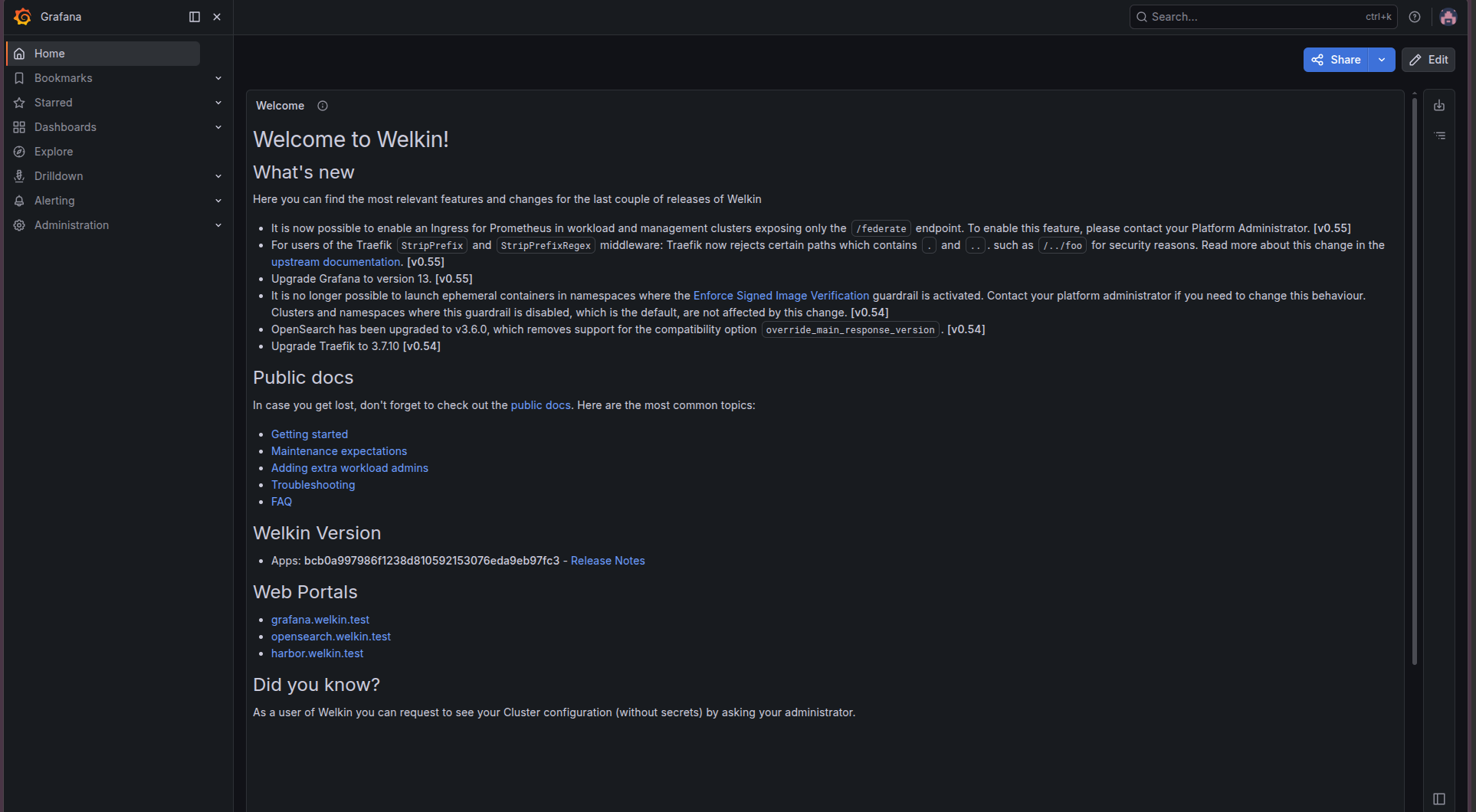
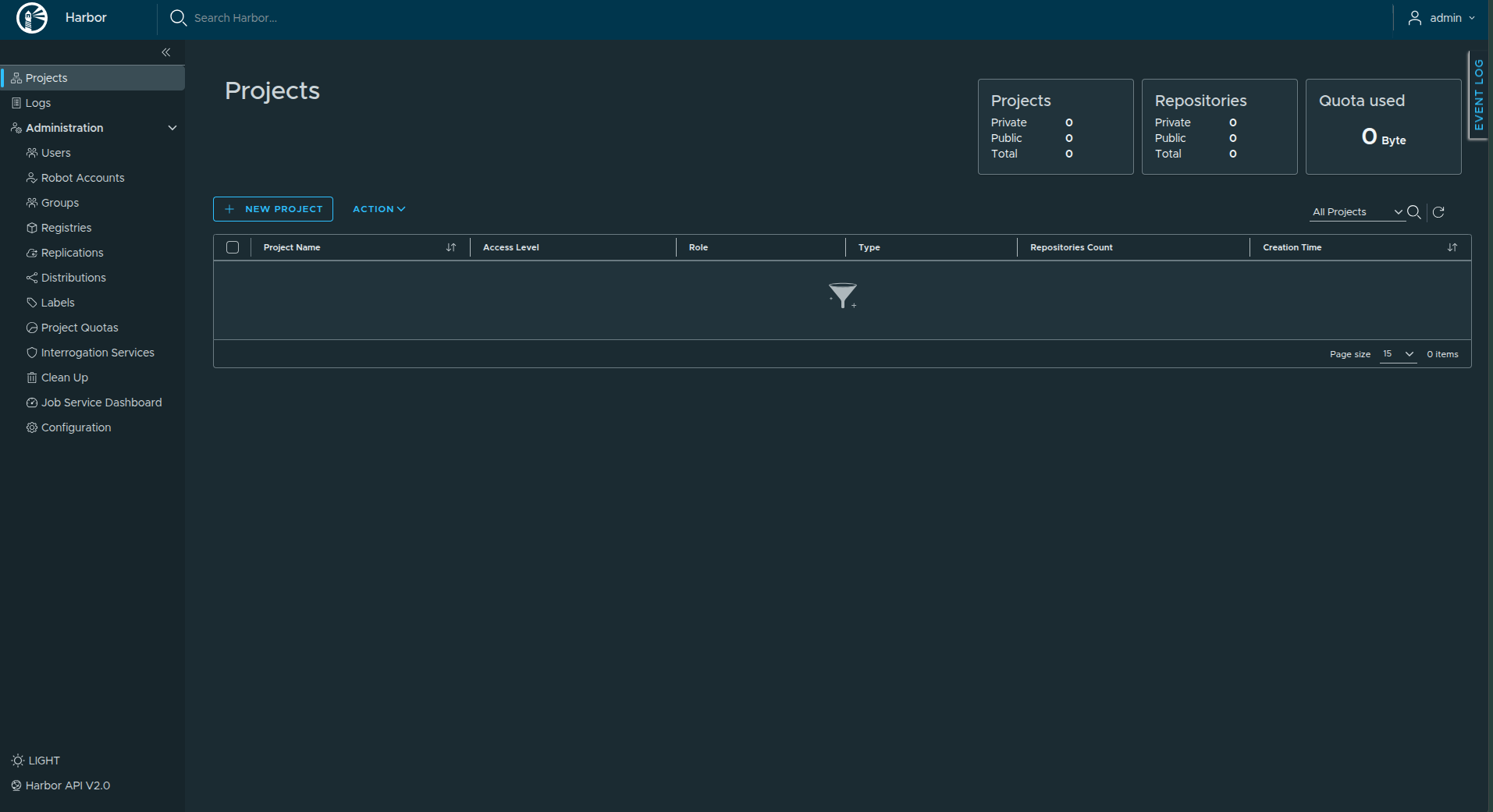
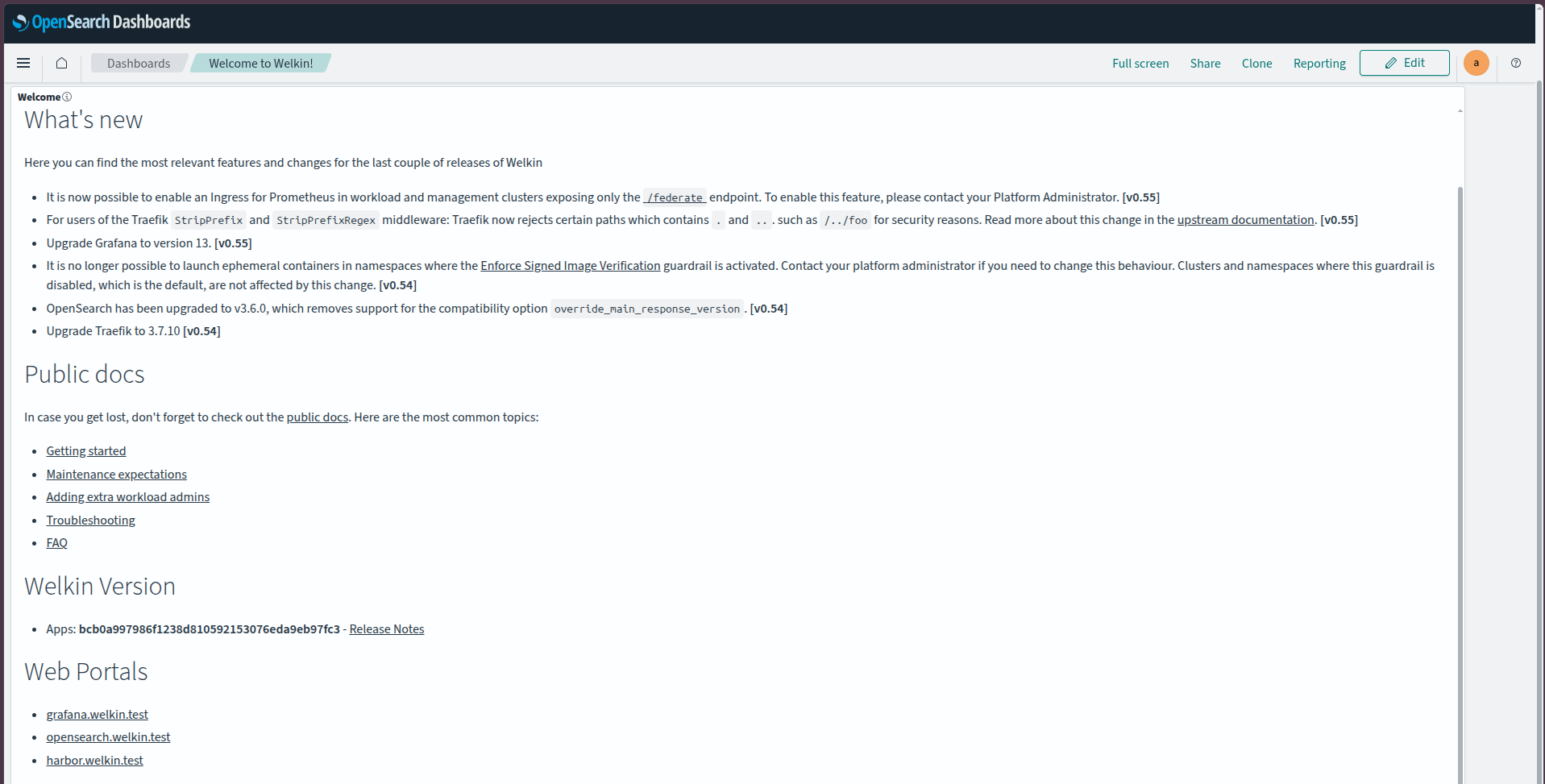
The following screenshots show the services after a successful installation.
Grafana
Harbor
OpenSearch
Option A: Local Machine
If you installed Welkin on your local laptop, you can access the services directly using the URLs provided in the output.
Option B: Remote / Headless Machine (SOCKS5 Proxy)
If you installed Welkin on a remote machine, you cannot access directly from your local laptop/desktop. You must use an SSH tunnel.
1. Establish the SSH Tunnel
Run this command on your local machine to open a SOCKS5 proxy on port 1080:
# Replace 'ubuntu@[IP]' and key path with your actual connection details
ssh -i /path/to/key -D 1080 -N ubuntu@[IP]
2. Setup Browser with Proxy
Open a new terminal window and launch a fresh instance of chrome using the proxy. This isolates the connection so it doesn't affect your other browsing sessions.
On Linux
google-chrome \
  --user-data-dir="$HOME/.config/google-chrome-socks" \
  --proxy-server="socks5://localhost:1080"
On macOS
/Applications/Google\ Chrome.app/Contents/MacOS/Google\ Chrome \
  --user-data-dir="$HOME/.config/google-chrome-socks" \
  --proxy-server="socks5://localhost:1080"
After successful tunneling setup. You can access the URLs from your local machine.
Post-Installation: Harbor Setup
To fully manage the Harbor registry, you need to elevate your OIDC user to an administrator.
-
Load Configuration & Secrets:
-
Before you can retrieve the admin password, you must configure your current shell terminal to access the encrypted secrets.
-
Run the following commands (using Welkin configuration path from script output):
# Set the configuration path export CK8S_CONFIG_PATH="$HOME/.config/welkin/welkin-quick-start" # Load the temporary GPG keys to decrypt the secrets source "$CK8S_CONFIG_PATH/.temp-gpg-env" -
-
Initial OIDC Login:
- Navigate to
https://harbor.welkin.test. - Click "LOGIN WITH Dex".
-
Log in with the default admin credentials (Email:
admin@example.com, Password: the output of the command below).sops -d $CK8S_CONFIG_PATH/secrets.yaml | yq '.dex.staticPasswordNotHashed' -
Harbor will ask you to create a username (e.g.,
admin_example_com). Confirm and then Log Out.
- Navigate to
-
Elevate Privileges:
- Navigate to
https://harbor.welkin.test/account/sign-in, but this time use the LOGIN VIA LOCAL DB (not OIDC). - Username:
admin -
Password: Retrieve the generated admin password from your secrets file:
sops -d $CK8S_CONFIG_PATH/secrets.yaml | yq '.harbor.password' -
Go to Administration -> Users.
- Select your OIDC user (e.g.,
admin_example_com). - Click "Set as Admin".
- Navigate to
-
Final Verification:
- Log out and log back in with "Login with OIDC Dex".
- You should now have full "Administration" privileges.
What's Next?
Now that your environment is running, you can follow the standard Welkin User Guide to deploy your first application.
1. Deploy the Demo Application
We have a step-by-step guide on deploy a sample demo application.
👉 Go to: Kubernetes API & User Demo
Follow the instructions in the "Running Example" section to:
- Configure your image pull secrets.
- Deploy the
user-demoapplication using Helm. - Verify the application is running.
2. Explore the Platform
- Grafana: Check the "Welkin / Cluster / Compute Resources / Cluster" dashboard.
- Harbor: Verify that the demo application image was pushed to your local registry.
- OpenSearch: View the logs for your application and the platform components.
Delete Quick Start
To stop and remove the lab environment completely, run:
quick-start delete
Limitations
Welkin Quick Start is intended for training, testing, and demonstrations. It is not suitable for production workloads.
- Single-machine Deployment: Runs on local Kind Clusters without production-grade high availability.
- Local storage: Data will be lost when the environment or its storage volumes are removed.
- Security: Uses development-oriented settings and temporary GPG keys. It is not production-hardened.
- Scalability: Intended for small-scale testing rather than production workloads.
Ready for Production
If you want to deploy a production-grade Welkin environment, see the Infrastructure Requirements for the necessary infrastructure and Deployment prerequisites.